

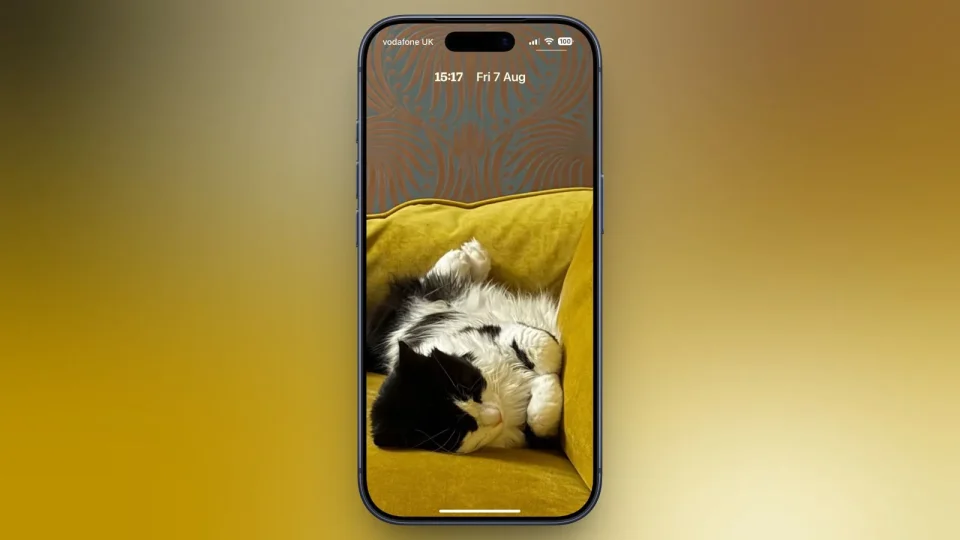
iOS 27 introduces a new compact Lock Screen clock that reduces the time display to roughly the size of the date and tucks it into the top row, letting more of your wallpaper remain visible while still showing time and date.
How to enable the compact clock in iOS 27
Touch and hold the Lock Screen, then tap Customize. Tap inside the currently set clock frame to open the Font & Color panel. In that panel, tap the new icon made of two horizontal bars in the top-right corner to switch the clock to compact mode. The clock shrinks immediately and moves up beside the date so you can judge the effect before saving; if you like it, tap anywhere on the wallpaper and then tap Done in the top-right corner. Tap the same icon again in the Font & Color panel to revert to the previous size and position.
Customizations and limits
The compact clock preserves existing clock customizations such as font, weight and color, and those can still be adjusted. However, the Liquid Glass slider is not available in compact mode. The compact option applies to individual Lock Screens rather than as a global setting, so you can use a compact clock on one wallpaper and a full-size clock on another (for example, to match a Focus mode).
iOS 27 is currently in public beta, with general availability expected in September.
