

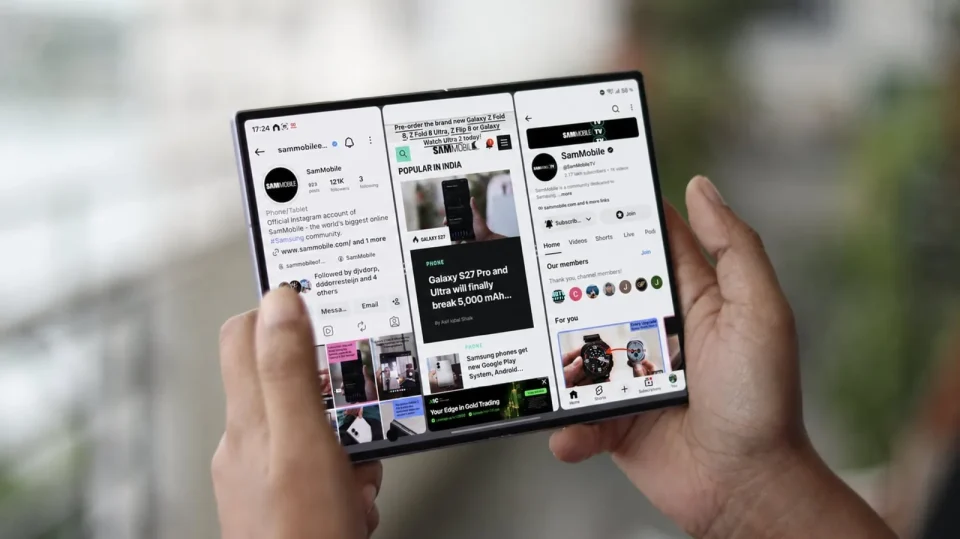
One small One UI tweak can make the Galaxy Z Fold 8’s multi-window (split-screen) experience noticeably better by hiding the status and navigation bars while you use split-screen. The change frees up screen real estate for apps and works across Galaxy phones that support the same setting.
Galaxy Z Fold 8: hide status and navigation bars in split-screen
By default, One UI keeps the status and navigation bars visible in split-screen on the Galaxy Z Fold 8 and other Samsung phones. You can change that in Settings: Open Settings > Advanced features > Multi window > Turn on Full screen in split screen view. Once enabled, swipe up from the bottom or down from the top to reveal the hidden bars when needed.
Hiding these UI elements gives app windows more room to expand. Android’s responsive UI lets app interfaces adapt to almost any window shape and size, so apps can take advantage of the extra space and appear less cramped. This is especially noticeable if you use the chunky navigation bar instead of navigation gestures: hiding the bar lets the app UI “breathe.”
The Galaxy Z Fold 8 and One UI benefit from Android’s reactive UI capabilities to offer flexible multi-window resizing. By contrast, iOS uses a preset list of resolutions for multi-window and does not allow the same on-the-fly resizing of app windows.
