

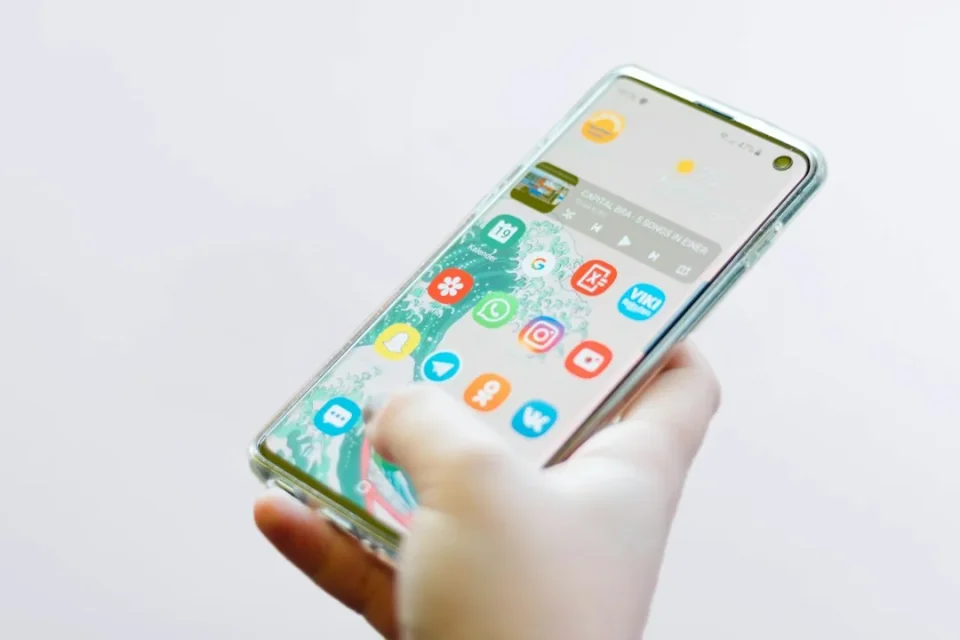
Samsung’s App lock, introduced in One UI 9.5, lets Galaxy users require identity verification for individual apps even when the phone is already unlocked. It’s designed to let you hand someone your device while keeping selected apps private.
How to lock an app
Press and hold the app icon, then tap the open padlock next to the App info icon. Tap Lock and confirm your identity. This method works for apps on the home screen and inside folders.
Lock multiple apps at once
To lock several apps without authenticating each one individually, go to Settings > Security and privacy > More privacy settings > App lock. Confirm your identity, then turn on the switch beside each app you want to protect. Locked apps appear together at the top of the list.
Removing a lock
Turn off an app’s switch in App lock settings to remove its lock. You can also press and hold the app icon in the home screen or app drawer and tap the closed padlock; you must authenticate before the app is unlocked.
Which apps can you lock
You can lock third-party apps (messaging apps, games, payment apps) and most Samsung apps, including Gallery and My Files. A few apps cannot be locked, notably Samsung’s Phone and Contacts apps and Galaxy Store.
Authentication behavior
You must authenticate every time you open a locked app. Leaving a locked app and returning — by tapping its icon, switching through Recents, or using a notification — always requires re-authentication, even after only a few seconds. App lock uses the same unlock methods set for the phone: if both face recognition and fingerprint are enabled, either will work, and you can also use your screen lock PIN, pattern, or password.
Apps that already have their own lock
You can use App lock alongside an app’s internal lock. Samsung’s App lock prompts for verification before the app opens; once opened, the app enforces its own lock settings, so you may see the app’s own unlock prompt next.
What others can see
Locked apps still deliver notifications, but content is hidden: a Telegram notification, for example, may show the app name and time while hiding the sender and message text even when expanded. Locking also hides notification contents already in the panel, though the unread count can still appear on the app icon. In Recents, a locked app appears as a blank card with a padlock in the middle, preventing others from seeing the app’s content.
Widgets and shortcuts
Locking an app removes its home screen widgets; if you turn App lock off later you must re-add widgets manually. Shortcuts from an app icon’s long-press menu can return automatically after removing the lock — for example, Telegram conversation shortcuts and Gallery’s Recent and Favorite shortcuts.
Gallery and sending photos from other apps
You can send photos from Gallery via another app’s photo/media picker without unlocking Gallery, provided you’ve opened the sending app. When you lock Gallery, Samsung shows a pop-up listing some apps that already have access to your photos and videos; you can tap View all in Settings to review permissions or tap Continue to finish locking Gallery. Opening Gallery itself still requires authentication: selecting More apps > Gallery from WhatsApp’s photo picker requires unlocking Gallery first. Tapping the photo thumbnail in the Camera app to view images also requires authentication each time you return to the viewfinder and tap the thumbnail, even if Gallery was unlocked moments earlier. To keep particular photos in a separate protected space, move them to Secure Folder.
Privacy Display for locked apps
On the Galaxy S26 Ultra, you can set Privacy Display to turn on automatically when you authenticate and the locked app opens. To enable this: go to Settings > Display > Privacy display > Conditions for turning on, turn on the switch at the top, then tap Secure features and enable Locked apps. This setting applies to every app secured with App lock. Privacy Display remains active if you pull down the notification shade or open the Quick panel while using the app, and it turns off as soon as you leave the app.
Why App lock might be missing
App lock requires One UI 9.5 or later and won’t appear on older One UI versions. Check your version under Settings > About phone > Software information, and look for updates at Settings > Software update. If App lock is present in Settings but an app’s padlock is missing when you press and hold its icon, that specific app may not support locking.
