

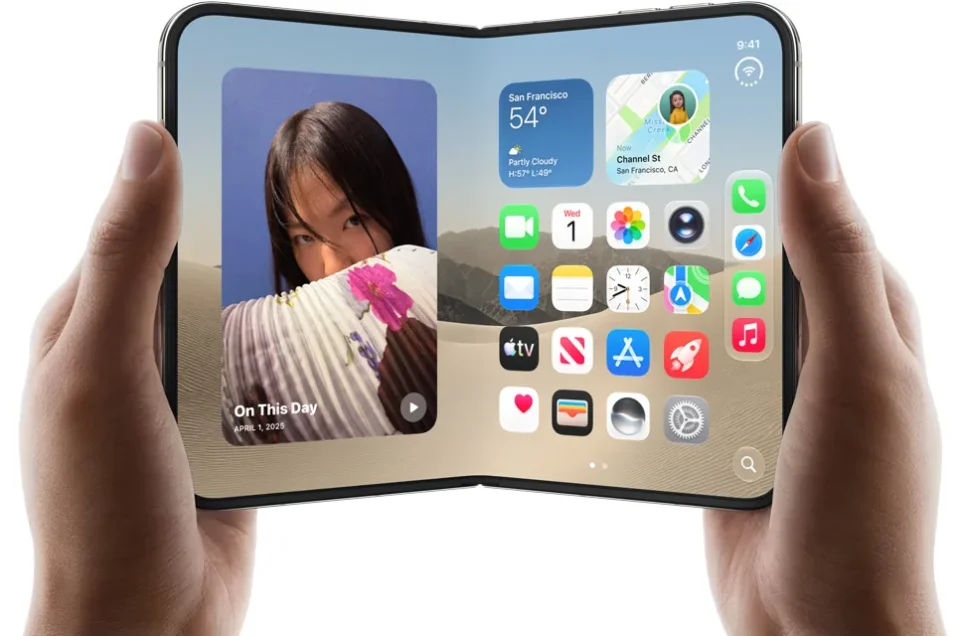
The iPhone Duo’s two-screen folding design opens new ways to use an iPhone. We’ve gathered 20 practical tips for owners — from split-screen multitasking to hands-free group photos — with full tutorials available in the how‑to section.
iPhone Duo tips: Multitasking and navigation
Use Two Apps Side by Side: Unfold the Duo into landscape, swipe up from the bottom, drag an app to the left or right edge, then tap a second app to fill the other side. You can also touch and hold an app icon and tap Open in Split View. The split is fixed at 50/50 and only one app plays audio at a time.
Lock Two Apps as an App Pair: With two apps open in Split View, tap the divider between them to ensure they always launch together. To unpair, drag the divider fully to either edge of the screen.
Reach for the Outer Display: On iOS 27.3 (beta), with the Duo closed swipe left on the left edge of the outer display to bring the right side of the screen into reach, and vice versa. It’s enabled by default after updating to the beta and can be managed via Settings ➝ Accessibility ➝ Touch ➝ Reachability; it works on the outer display only.
Keep a Video Playing Above an App in Portrait: Start a video in a Picture in Picture (PiP)‑supporting app (for example Apple TV or Podcasts), tap the PiP icon, swipe up to the Home Screen, open a second (non‑video) app, then tap the stack icon in the PiP window to dock the video above that app.
Controls, input and one‑handed use
Silence Quickly with no Mute Switch: The Duo lacks a Ring/Silent switch and an Action button assignable to silence. Open Control Center and tap the Silent Mode bell; if it’s missing add it via the plus button under Add a Control (find it in the Sounds category). Alarms and media audio still play in Silent mode.
Open Control Center With a Tap, Not a Swipe: Tap the circular status indicator below the clock (the combined Wi‑Fi, cellular and battery icon) to open Control Center instead of swiping from the top corner. The indicator sits lower when a Live Activity is running, making this easier one‑handed and faster for silencing the phone.
Split the Keyboard in Landscape: With the Duo unfolded in landscape, tap the More (…) button at the top‑left of the keyboard, then tap Split. To return to a full keyboard choose More ➝ Full. When the Duo is closed, long‑press the globe or emoji key to shift the keyboard to one side for easier one‑handed typing.
Skip the Swipe Up With Rest Finger to Open: Enable the toggle in Settings ➝ Touch ID & Passcode (also available in Settings ➝ Accessibility ➝ Side Button) to open the phone directly by resting your finger on the side button while the screen is awake, bypassing the swipe up gesture.
Display, StandBy and hinge tricks
Use StandBy Without a Charger: In Settings ➝ StandBy, tick the folding positions you want and switch off Only While Charging to use StandBy modes without a charger. When you lock the phone and half‑fold it like a book or set it in a tent shape on a flat surface, StandBy will start automatically.
Turn the Hinge into an App Launcher: In Shortcuts create an automation using the Opened or Closed trigger plus the Open App action so a chosen app launches automatically when you unfold the phone. You can add conditions such as time of day or Focus.
Shift Left Edge for Case Wearers: Enable the toggle at Settings ➝ Display & Brightness ➝ Shift Left Edge to inset the outer display so a case doesn’t cover on‑screen content. Apple’s official case prompts you to enable it, or you can turn it on manually for third‑party cases.
Lock Rotation for Each Display Independently: Orientation Lock in Control Center applies only to the display you’re using when you enable it, so the outer display can remain locked in portrait while the inner display rotates freely. Note that videos will still rotate automatically in tent mode regardless of the lock.
Make Volume Buttons Follow Rotation: In Settings ➝ Sounds & Haptics, turn off Fixed Position Volume Controls so the top or right button is always volume up, whichever way you’re holding the phone. Apple’s documentation suggests this dynamic behavior is the default, though early units we’ve tested did not always behave that way.
Security and unlocking
Unlock iPhone Duo With Your Face: On iOS 27.3 beta 2, after authenticating in Settings ➝ Touch ID & Passcode you can toggle on the new Face Unlock option to unlock the device with the front camera. It works only at the Lock Screen when the Duo is closed and cannot be used for Apple Pay or autofill from the Passwords app. You still need Touch ID or a passcode for unlocking when the Duo is unfolded.
Unlock With Your Apple Watch: In Settings ➝ Touch ID & Passcode ➝ Unlock with Nearby Devices toggle on your watch model. With the watch on your wrist and unlocked, wake the Duo and swipe up; the watch will authenticate without requiring Touch ID.
Camera and photo features
Take Selfies With the Rear Cameras: Unfold the Duo, open Camera, turn the phone around and drag the Show Camera slider on the outer display to get the 48‑megapixel rear Fusion cameras with a live preview on the side facing you. Shoot with the on‑screen shutter, a volume button or Camera Control.
Let Someone Beside You Join FaceTime: On a group FaceTime call tap the screen, tap the More button, then tap Duo FaceTime to give a nearby person their own view via the Center Stage front camera and the under‑display camera so no one has to squeeze into the same frame.
Let Your Subject See the Shot With Duo Preview: In Camera tap the Outer Display Options button and choose Duo Preview to show a mirrored live preview on the outer display while you frame the shot on the inner display; this works for both photos and video.
Get Hands‑Free Group Photos: Prop the Duo steady, tap the Smart Take button in Camera and pose; the device captures automatically when you hold still and can take up to 20 photos. When half‑folded on its side, one half becomes the viewfinder and the other shows shots already taken.
Get the Attention of Kids and Pets in Photos: In Camera go to Outer Display Options ➝ Kid Cue to play a Snoopy animation on the outer display and draw a subject’s gaze while you frame on the inner display. The trade‑off is the subject will appear to be looking slightly off to the side because the main camera is on the other half of the phone.
