

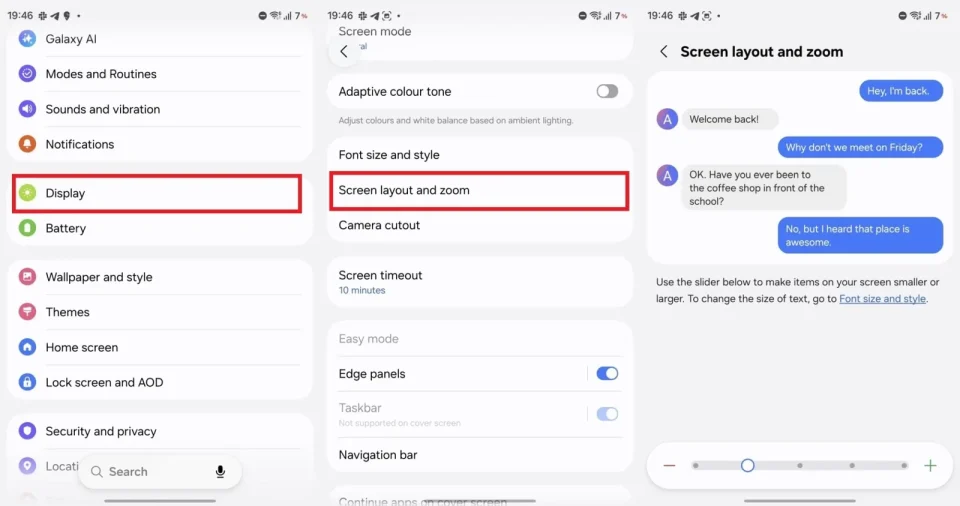
If you transfer settings to a new Galaxy Z Fold 8 using Smart Switch, check the Screen layout and zoom setting immediately after the transfer. The Fold 8 uses a different default zoom than most Galaxy slab phones, and importing an older phone’s settings can leave the UI at a higher zoom level that may cause display issues in One UI or in some third‑party apps.
Galaxy Z Fold 8: Screen layout and zoom setting to verify
On most Galaxy phones the Screen layout and zoom slider is centered by default. The Galaxy Z Fold 8’s default is intentionally set one notch to the left of center to fit more content on its 5.5‑inch cover screen. The Screen layout and zoom control adjusts the overall size of UI elements system‑wide via a slider: left makes elements smaller, right makes them bigger.
Because screen zoom applies to both the cover and inner displays (regardless of whether you mirror the cover to the inner screen), restoring a higher zoom level from an older slab phone can result in UI problems across One UI or in individual apps.
Check the setting at Settings > Display > Screen layout and zoom and confirm the slider is at the Fold 8’s default position (one notch left of center). Give the default a couple of days to see if your eyes adjust before changing it. If the UI remains uncomfortably small, you can increase the general zoom level or adjust zoom for specific apps instead.
How to adjust per‑app and other display options
To set a different zoom level for a single app without affecting the rest of the phone, go to Settings > Advanced features > Labs > App screen zoom, then select the app and a zoom level. Other display adjustments are available as well: Font size and style are in Display settings, and App size on the Home and Apps screens can be changed by pinching the home screen and tapping Settings.
If you plan to use Smart Switch to transfer data, consider avoiding importing your old phone’s display settings; at minimum, check and, if needed, reset Screen layout and zoom after the transfer.
