

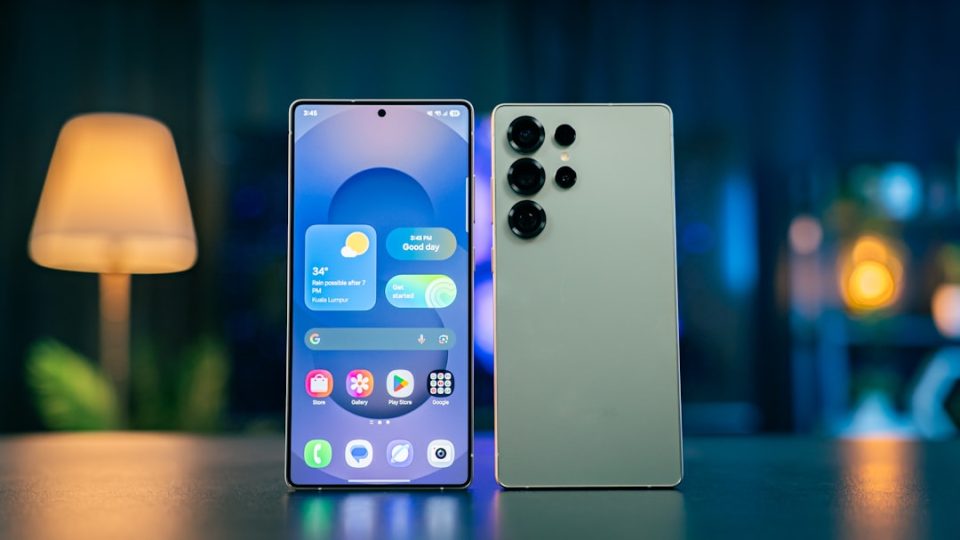
The Galaxy S26 FE went on sale on September 4 and brings many flagship features from the original S26 series at a lower price. It also ships with Android 17 and Samsung’s One UI 9 out of the box — an advantage over the Galaxy S26, S26+ and S26 Ultra.
Here are five features worth trying right away on your Galaxy S26 FE, with steps to get started.
Galaxy S26 FE — Turn a group video into your own FanCam
Open a saved video in the Gallery app, tap the Galaxy AI icon and choose My FanCam to create a cropped clip that follows a single person. Select an aspect ratio, then frame the person you want the crop to follow; Galaxy AI keeps that person centered while everything outside the selected frame is cropped out. Unlike the camera app’s Auto Framing, which follows people while you record, My FanCam lets you pick who to follow after the video has been saved. If My FanCam can’t find anyone, use the seek bar to move to a point where the people in the video are easier to see.
Create personalized Now Brief custom cards
One UI 9 adds a Custom cards section to Now Brief that lets you create up to three cards of your own. Available categories include weather, health and videos. You can pick a suggested option or write your own prompt — for example, ‘Show me my sleep and energy scores’ — and choose when the card should appear. Now Brief validates the prompt, generates the layout and shows an example of the finished card. You can also make cards that recommend videos about a player, sport or topic, and any custom card can be edited or deleted later.
Put Finder and Google Search one tap away
You can permanently display Samsung Finder and Google Search at the bottom of the home screen. Pinch the home screen, tap Settings and select Show search on Home screen, then enable Samsung Finder, Google Search or both. Google Search gives quick web access; Finder searches the content stored on the phone — apps, settings, contacts, files and even Samsung Calendar entries — without opening the app drawer. If you enable both, you can switch between them from the search bar; disabling both restores the regular home screen page indicator.
Try to defeat Horizontal Lock in Super Steady video
The S26 FE supports Super Steady video recording with Horizontal Lock, which uses the phone’s sensors to keep the horizon level even when you tilt or rotate the device while recording. To enable it, open the Camera app, switch to Video mode, tap the Super Steady icon (running person) and then tap the Horizontal Lock icon (running person with a diagonal line). Once recording starts, rotating the phone may change its physical orientation, but the recorded video’s orientation should remain level — useful for sports or outdoor activities where keeping the device steady is difficult.
Design the Quick Panel your way
One UI’s Quick Panel is highly customizable. Open it fully (swipe down from the top right corner) and tap the pencil-shaped edit button to rearrange toggles and widgets, remove items you don’t use, and switch the brightness and volume sliders between horizontal and vertical layouts. You can also resize the brightness slider, volume slider and media player widget. There are enough options that you may spend some time finding an arrangement that keeps your most-used controls exactly where you expect them.
