

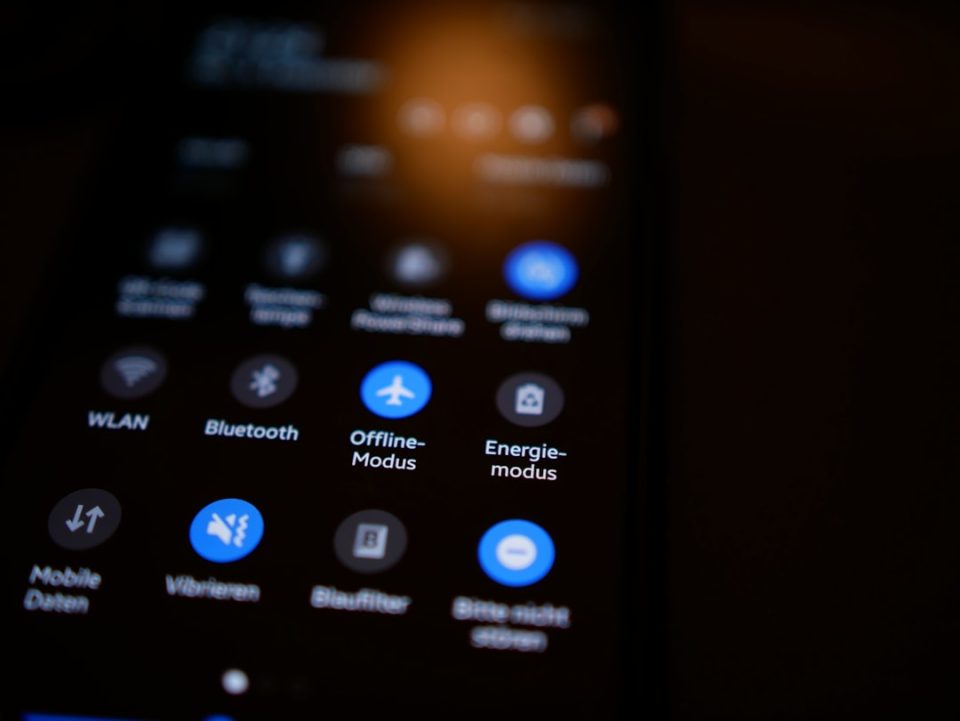
The Samsung battery settings that save the most power are Power Saving mode, reduced screen brightness, dark mode on AMOLED screens, and turning off features you are not actively using such as 5G, Wi-Fi, Bluetooth and location services. These changes can meaningfully extend how long your phone lasts between charges without any technical knowledge; small changes to two or three of these can add an hour or more to your day.
Which Samsung settings drain battery the fastest?
The biggest battery drains on a Samsung phone are a bright screen, 5G connectivity, background app activity, and location services running constantly. The display is typically the single largest consumer of battery power, followed by mobile data, especially when the phone is constantly searching for a strong 5G signal. High screen brightness running at maximum all day, 5G always on in weak coverage areas, background app refresh for apps you rarely open, location services set to Always on for multiple apps, push notifications and sync for email, social media and news apps, and a hotspot or Bluetooth left on when not in use are the most common culprits.
What Power Saving mode does
Power Saving mode reduces battery use by limiting your phone’s performance and cutting back on features that run in the background. When enabled, the phone lowers screen brightness, reduces processor speed, restricts background data for most apps and turns off features like Always On Display, resulting in noticeably longer battery life when you cannot charge soon. To turn it on: go to Settings, tap Battery and device care, then Battery, and select Power saving. You can switch it on manually or set it to activate automatically when your battery drops to a certain percentage, such as 20% or 15%. Power Saving mode does not stop normal everyday tasks like calls, texts and browsing; it simply slows background activity you would not notice.
How to find which apps are using the most battery
To see exactly which apps consume the most battery, go to Settings, tap Battery and device care, then Battery, and select Battery usage. That screen shows a ranked list of apps and system features ordered by how much battery each used over the past 24 hours or since the last charge. Once identified, you can restrict background activity for apps you do not use often by tapping the app in the Battery usage list and selecting Restrict, turn off notifications for apps that wake your screen constantly, or delete or replace apps that use a surprising amount of battery relative to how little you use them. Social media apps and streaming services often appear near the top because they are designed to run in the background.
Samsung battery settings: Dark mode and 5G
Dark mode saves battery on Samsung phones with AMOLED or Dynamic AMOLED displays—black pixels are effectively switched off rather than lit, so dark backgrounds use less power than white ones. The savings are most noticeable at higher screen brightness. To enable dark mode, go to Settings, tap Display, and select Dark under the Brightness section at the top; you can also schedule it to turn on automatically. Enabling dark mode within apps that have white backgrounds, such as email or browsers, increases the benefit.
Switching from 5G to 4G LTE can extend battery life, particularly in areas where 5G coverage is patchy. In weak 5G zones the phone works harder to maintain the connection, which drains battery faster than a consistent 4G connection. To change network mode, go to Settings, tap Connections, then Mobile networks, and select Network mode to choose LTE/4G instead of 5G. If you have strong, reliable 5G coverage the battery difference is smaller, and you can switch back when you need faster speeds.
Best screen brightness setting for battery life
Adaptive brightness is the best setting for battery life because it automatically adjusts the screen based on ambient light and prevents the display from running at full power indoors. To enable it, go to Settings, tap Display, and toggle on Adaptive brightness. If you prefer manual control, keeping brightness around 30 to 50 percent in most situations reduces battery drain compared with maximum levels. Combining lower brightness with dark mode and a shorter screen timeout (Settings > Display > Screen timeout) minimizes the display’s power use, since the screen is almost always the phone’s biggest power consumer.
