

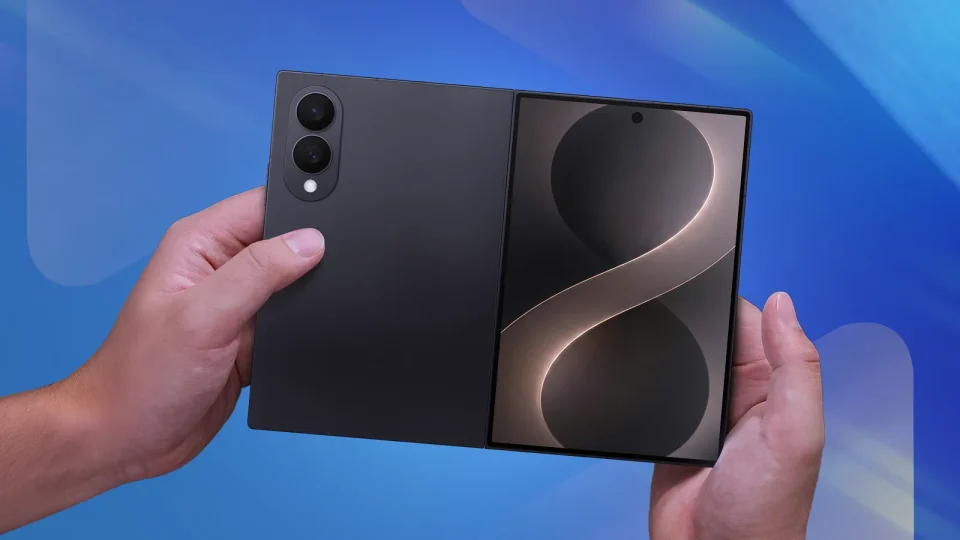
Samsung’s Galaxy Z Fold 8 and Fold 8 Ultra running the latest One UI 9 firmware let users control how apps behave when the device is folded, with three display continuity options that determine whether an app moves from the main screen to the cover screen.
Display continuity settings on Galaxy Z Fold 8
You can find the options under Settings > Display > Continue apps on cover screen. The three settings for display continuity are:
Always: The app you are using on the main screen will automatically open on the cover screen when you fold the phone.
Swipe up to continue app: The app will transition to the cover screen only when you instruct it to do so by closing the phone and swiping up on the cover screen.
Never: Regardless of which app you were using on the main screen, it will not transition to the cover screen when you fold the phone; instead, the Galaxy Z Fold will lock automatically when folded.
Most Galaxy Z Fold users find the Swipe option ideal, since it lets the app move to the cover screen when you want it to, while letting you keep the device locked after folding if you ignore the swipe-up prompt.
There are no equivalent user-selectable options for the reverse transition. Apps that run on the cover screen will almost always be reopened on the main screen when you unfold the phone.
Keep in mind that many Android apps currently lack on-the-fly UI scaling and resizing. Such apps will almost always automatically restart to adapt their interfaces to the different screen after unfolding; this behavior may improve with future Android updates, but time will tell.
