

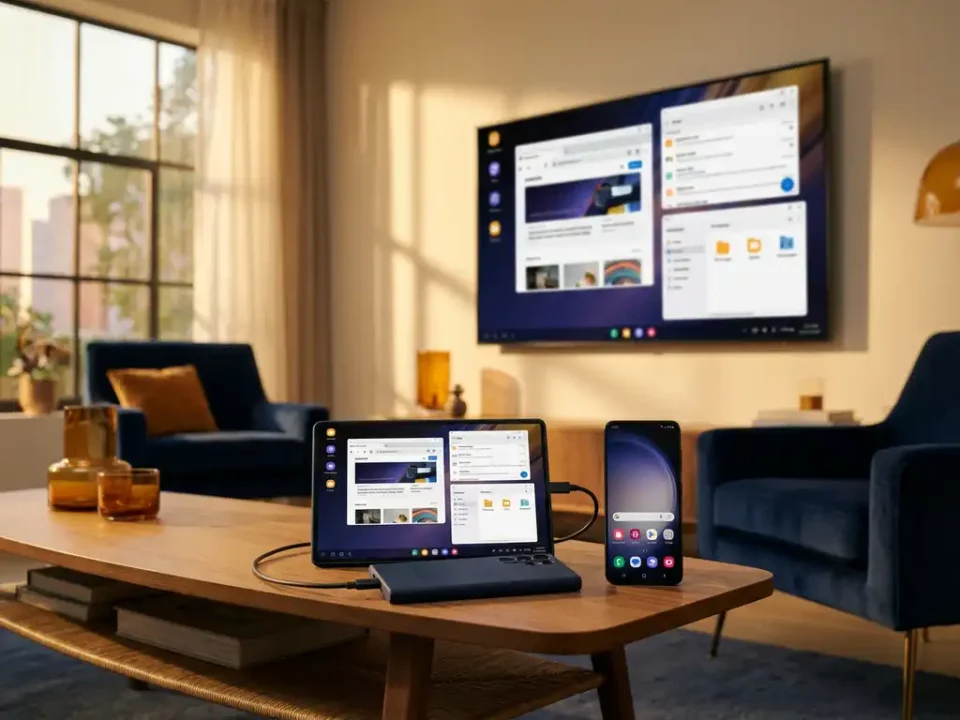
Samsung made its Multi Control feature available on more Windows PCs with a September 2026 update to the Galaxy Connect app, adding support for MediaTek and Realtek Bluetooth adapters alongside Intel. Galaxy Connect had already gained support for PCs from other manufacturers in April 2026, but those computers required Intel Wi‑Fi and Bluetooth hardware; the expanded adapter support means more people can use features such as Multi Control and Storage Share with their existing PCs.
What Samsung Multi Control does
Multi Control lets you use your Windows PC’s mouse and keyboard to control a compatible Galaxy phone or tablet. Once connected, you can move the mouse pointer from the PC’s display onto the Galaxy device’s screen, click to open apps, scroll, and type using the keyboard attached to your computer. A Galaxy tablet can also act as the controlling device if you connect a mouse and keyboard to it.
Moving between screens works much like using multiple monitors in Windows: you can connect multiple Galaxy devices at the same time and arrange each one above, below, to the left or to the right of your PC display. Your phone or tablet continues running its own apps, so you can, for example, use the PC and move over to reply to a message on your phone using the same mouse and keyboard. Multi Control also supports copying and pasting text between devices and dragging and dropping photos and other files, although some apps may limit what can be transferred.
How to set up Multi Control on Windows
To use Multi Control on a PC you need Windows 11 running on a 64‑bit Intel or AMD processor; ARM‑based PCs are not supported. Your computer must have Wi‑Fi and a compatible Bluetooth adapter: Samsung specifies Bluetooth 5.0 or newer with Extended Advertising support. On the mobile side you need a compatible Galaxy phone or tablet running One UI 5.1 or newer. Sign in to the same Samsung account on both devices, connect them to the same Wi‑Fi network, and enable Bluetooth on each device.
To enable the feature, download or update Galaxy Connect from the Microsoft Store on your Windows PC, open Galaxy Connect and sign in to the Samsung account you use on your phone or tablet (install the Samsung Account app if prompted). In Galaxy Connect select Multi Control and follow any prompts to install the supporting Multi Control app; open that app and turn the feature on. On your Galaxy device go to Settings » Connected devices » Multi control and enable it. On the PC, select your phone or tablet in Multi Control to connect, then in Multi Control’s layout settings drag the device icon above, below or to either side of the PC display to match your physical arrangement and click Apply.
Multi Control also offers an Auto connect option in the PC settings; enable it to automatically connect to nearby Galaxy devices when they are on the same Wi‑Fi network so you don’t need to pair them manually each time.
