

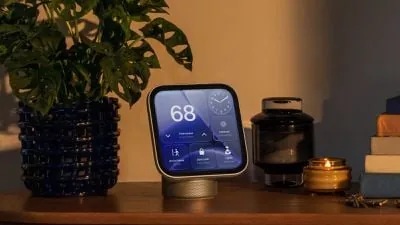
Apple’s HomeView is out today, and here are the key setup and usage details gathered for new owners and prospective buyers.
HomeView face recognition and authentication
HomeView authenticates people using facial recognition plus verification that a nearby iOS device was recently unlocked and is on the same Wi‑Fi network. If Wi‑Fi is down, Apple says a cellular connection can be used to unlock personal content as long as the device is in the same location and was recently on the HomeView’s Wi‑Fi network. If someone repeatedly attempts to access personal content requiring authentication, facial recognition via the camera is disabled and the user must prove identity with a registered device.
Camera, Mirror and positioning
HomeView includes a “Mirror” in Control Center that uses the camera to let you see yourself, with options for an edge light to illuminate the face and 1x and 2x zoom. Apple warns the unit may not recognize you if your face is covered, including when wearing sunglasses. For reliable recognition, the screen should be angled toward your face, you should be centered in the frame and closest to the camera if others are present, and the device must have front‑facing, even light; it must not be blocked by overhanging shelves or cabinets.
Guest controls and media settings
The HomeView owner can limit guest access in several ways: Safari can be enabled or disabled and adult websites can be blocked; Siri use is allowed by default for general knowledge, writing help and math help but can be turned off; explicit content can be toggled on or off; and the owner can choose which Apple Music subscription supplies music for an unrecognized user. A sleep timer can be set to pause whatever media is playing when the timer ends.
System behavior, logins and notifications
There is no physical button to power HomeView on or off or to restart it. It can be restarted from the Settings app or by briefly unplugging the unit. You can sign into websites and apps using an iPhone, similar to the Apple TV workflow. Notifications on HomeView are limited to phone calls and home devices, with an option to enable critical notifications; there are no broader notification settings.
Interface and appearance
The transparency of the Liquid Glass interface on HomeView can be adjusted from clear to opaque in the same way as on iPhone, iPad and Mac.
