

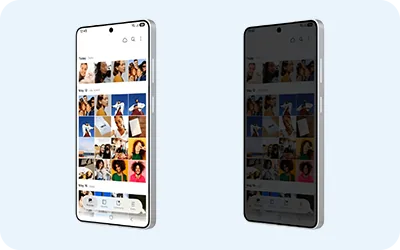
One UI 9.5 adds a Privacy Display option that automatically activates on the Galaxy S26 Ultra whenever you open an app protected by the new App lock feature.
Privacy Display and App lock
App lock lets you protect individual apps with biometrics or your screen lock PIN, pattern, or password so they require authentication even when the phone is already unlocked. On the Galaxy S26 Ultra, Samsung has linked App lock to Privacy Display so the display privacy filter turns on as soon as you authenticate and a locked app opens. Privacy Display turns off when you leave the app and remains active if you pull down the notification shade or open the Quick panel while using the app.
The setting applies to all apps secured with Samsung’s App lock, so you do not need to select each app separately in Privacy Display’s app list. To enable the behavior, go to Settings → Display → Privacy display → Conditions for turning on and make sure the switch at the top is enabled. Then open Secure features and turn on Locked apps.
Privacy Display can also be set to activate automatically when you use Samsung Browser’s Secret mode, open private albums in Gallery, or access locked notes in Samsung Notes.
Samsung launched the One UI 9.5 beta on November 18 for the Galaxy S26 series in selected markets. Eligible users can sign up through Samsung Members, and the Privacy Display additions are available on the Galaxy S26 Ultra.
