

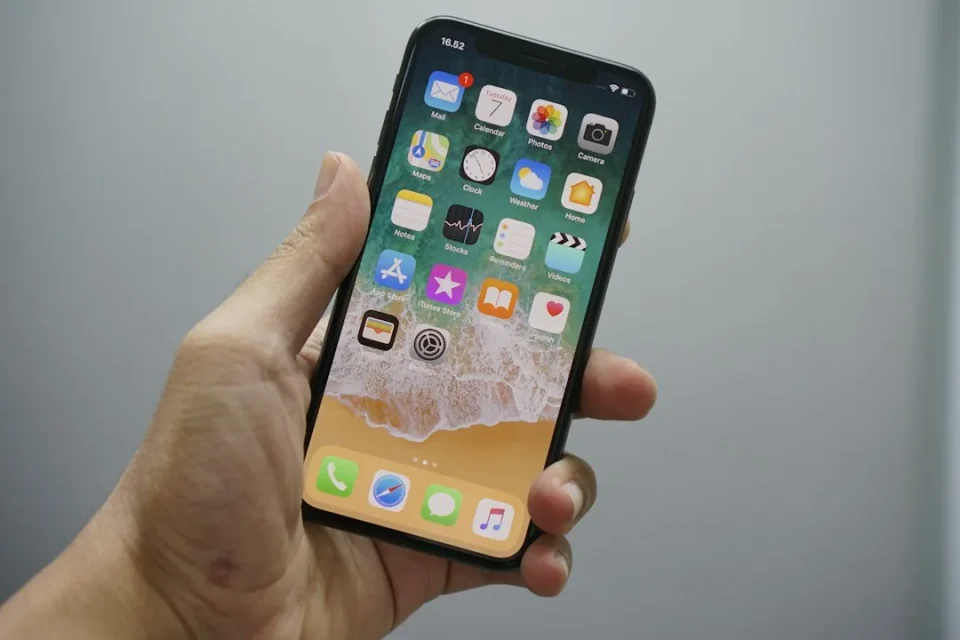
You don’t need Apple Intelligence or the very latest model to get more out of your device. Here are five built-in iPhone features worth knowing about that can replace common third‑party apps and make everyday tasks easier.
iPhone features: Use your iPhone to charge other devices
The iPhone 15 and newer models support wired reverse charging through their USB‑C port. Connect a compatible charging cable to the accessory and charging begins automatically. Power output is limited to 4.5W, so this is best suited for accessories like AirPods and Apple Watch rather than other smartphones. Keep in mind that charging another device comes at the expense of your iPhone’s battery.
Automatically stop music and podcasts
If you often fall asleep to music or podcasts, use the built‑in sleep timer in the Clock app. Open Clock, select Timer, set the desired duration, tap the timer sound option, scroll to the bottom and choose Stop Playing, then start the timer. When the countdown ends, the iPhone stops media playback instead of sounding an alarm. You can also ask Siri, for example, “Stop playing in 30 minutes.”
Draw perfect shapes in Photos and screenshots
When annotating a photo or screenshot in the Markup editor, draw a shape and hold your finger on the screen without lifting it. The iPhone automatically converts a rough sketch into a polished geometric shape. This works for circles, rectangles, stars, arrows and straight lines, making it easier to highlight specific details in an image.
Scan QR codes saved in Photos with Live Text
You can scan a QR code that’s already saved as a photo or screenshot without using another device. Open the image in Photos and touch and hold the QR code to access its associated link; you can also use the Live Text button when available. Apple’s Live Text also recognizes other useful information in images—tap phone numbers to call, tap addresses to open them in Apple Maps, and tap recognized dates to add them to your calendar.
Convert currencies and measurements from Spotlight
Spotlight does more than find apps and contacts. Swipe down from the middle of the Home Screen and type a conversion directly into the search field. Examples that work: “150 g to oz”, “100 USD to CAD” and “25 Celsius to Fahrenheit.” The answer appears in the search results without opening Safari or downloading a dedicated conversion app.
Many iPhone owners still turn to third‑party apps for these tasks, but these built‑in features can handle common needs quickly and without extra downloads.
