

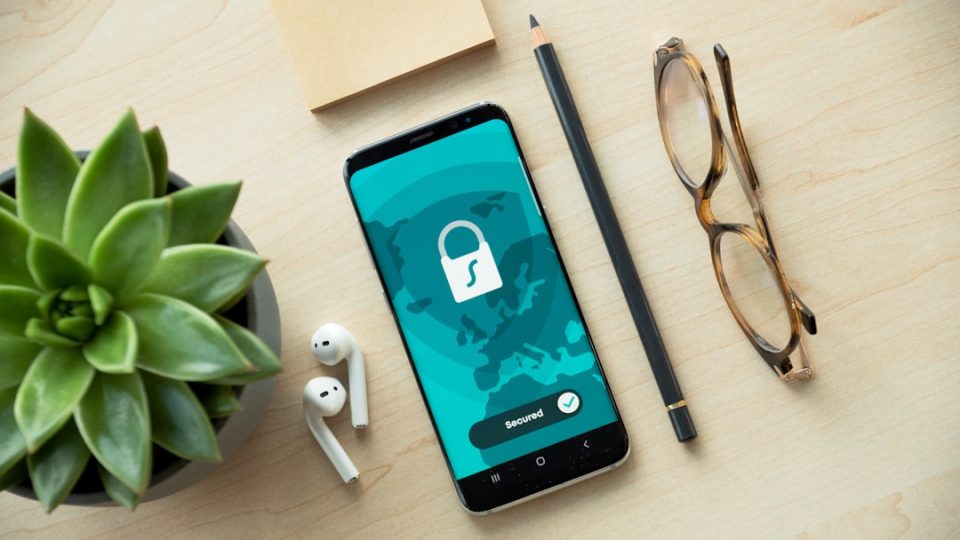
Wi-Fi tracking can identify your Samsung phone’s presence and movements, but it generally reveals location and basic device information rather than personal files or messages. When your device connects to or even scans for Wi‑Fi networks, routers and tracking systems can log identifiers and connection patterns that reveal where you are and how you move.
How Wi-Fi tracking works
Wi‑Fi tracking relies on two related mechanisms. First, when you actively connect to a network, the router logs your device’s MAC address, connection times and data usage. Second, even when not connected, your phone scans for networks and broadcasts probe requests that contain identifying information. Tracking systems measure signal strength to multiple access points and use triangulation to estimate position; in dense Wi‑Fi environments this can often pinpoint location within a few meters.
What information networks can collect
Networks can collect your device’s MAC address, timestamps of connections, data usage patterns and an approximate location based on signal strength. On unsecured networks they may also see which websites you visit, though most modern sites use HTTPS so the specific content of encrypted pages remains hidden. Advanced systems can map movement inside buildings by comparing signal strength across multiple access points.
Public networks versus home networks
The main difference is who controls the network and how they use logged data. Public Wi‑Fi at cafés, airports or stores is more likely to collect and share analytics about foot traffic, peak times and customer behavior, and some providers state this in their terms of service. Home networks typically log basic connection details for security or troubleshooting and generally keep that information local unless the router uses cloud management that syncs data to the manufacturer’s servers.
How to reduce Wi-Fi tracking on your Samsung
You can limit tracking by changing settings and habits. Enable MAC address randomization on your Samsung (Settings > Wi‑Fi, tap the gear icon and enable “Use randomized MAC”) to make your device present different MAC addresses to different networks. Turn off Wi‑Fi scanning in Location services (Settings > Location, disable “Wi‑Fi scanning” under “Improve accuracy”) to stop constant network probing when Wi‑Fi is off. Turn off Wi‑Fi when you don’t need it, remove saved networks you no longer use regularly and disable auto‑connect for public networks. Consider using a VPN on public Wi‑Fi: it won’t stop the network from seeing your device, but it encrypts your internet traffic and hides your browsing activity from the network operator.
Understanding these limits and protections lets you balance connectivity and privacy: Wi‑Fi tracking mainly exposes location and device identifiers, and the steps above can significantly reduce how trackable your Samsung phone is without cutting off wireless access.
