

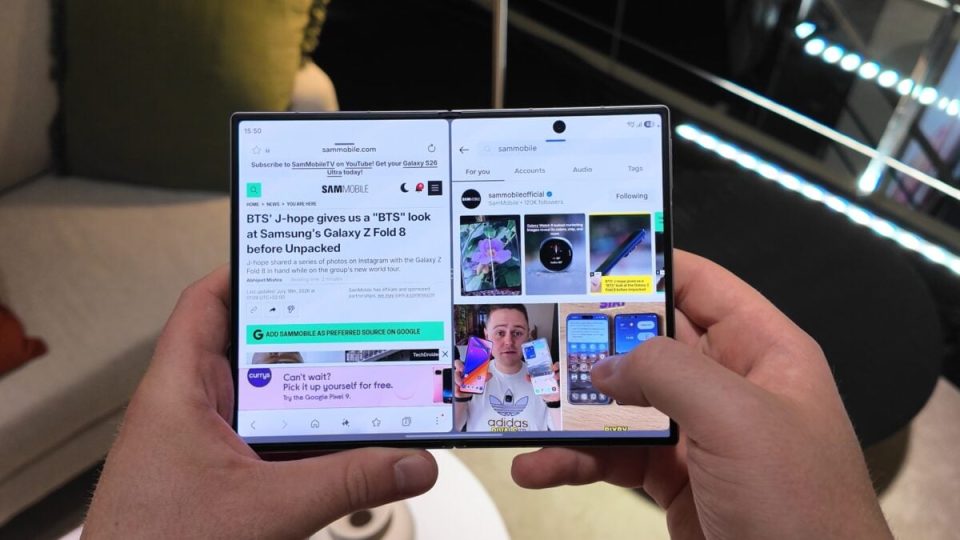
If you own a Galaxy Z Fold 8 or Galaxy Z Fold 8 Ultra, enable One UI’s multitasking gestures to take full advantage of the large main display — they are turned off by default in One UI 9 unless you import settings from another Galaxy using Smart Switch.
How to enable multitasking gestures
Open Settings » Advanced features » Multi Window and turn on Swipe for split screen and Swipe for pop-up view. Once enabled, the gestures work on the Fold 8 and Fold 8 Ultra main and cover screens as described below.
Galaxy Z Fold 8 split-screen gestures
With an app open on the Fold 8’s main display, swipe inward from a side or the bottom edge using two fingers to launch split screen. On regular Galaxy phones and the Fold 8 cover screen, the two-finger inward swipe works only from the bottom edge. The second app appears from the same edge you swiped. Note: the gesture requires an app to be open — it won’t work from the home screen.
Pop-up window gesture
To convert an app into a floating pop-up window, swipe inward from the upper-right corner while in the app. The app switches to a resizable, movable pop-up. After enabling the option, this pop-up gesture behaves the same on both the cover and main screens.
Limitations and practical notes
You can enable both gestures at the same time, but you cannot use split-screen and a pop-up simultaneously: if two apps are already open in split screen you can’t open a pop-up, and if an app is open as a pop-up you can’t launch split screen with the two-finger swipe. These multitasking gestures are particularly well suited to foldables and tablets, so consider trying them again on a Fold even if you didn’t use them on a previous rigid Galaxy phone.
