

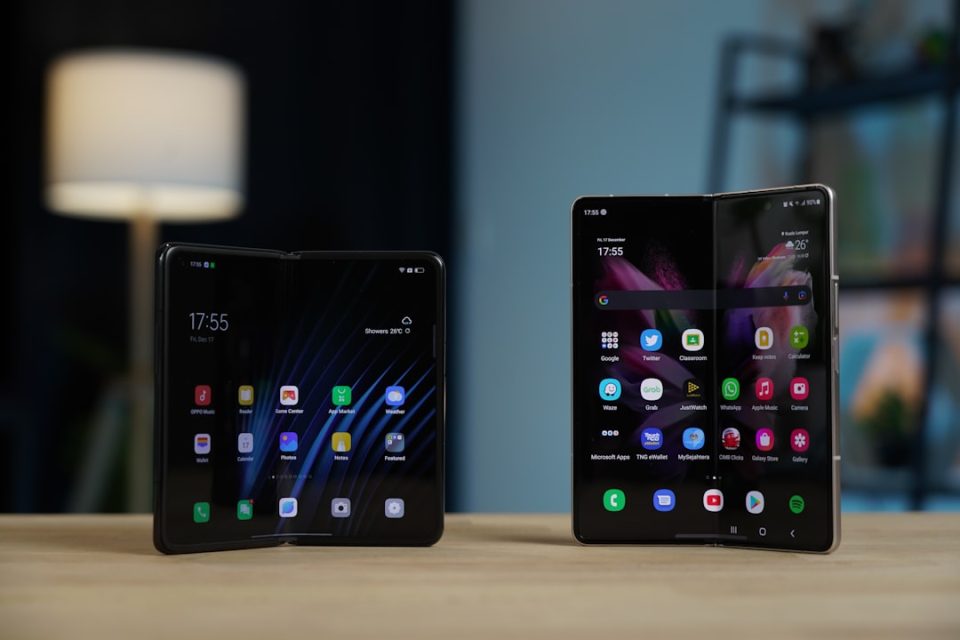
Many Galaxy phone users rely on the side + volume-down buttons for screenshots, but that traditional method can be awkward when the Galaxy Z Fold 8 or Galaxy Z Fold 8 Ultra is unfolded. If pressing the side and volume-down keys at once feels uncomfortable, Samsung offers seven alternative ways to capture your screen — available on these models and other Galaxy Z Fold phones.
Screenshot alternatives for Galaxy Z Fold 8
Palm swipe
You can capture a screenshot by swiping the edge of your palm across the screen, left to right or right to left. To enable this: open Settings > Advanced features > Motions and gestures > Palm swipe to capture.
Screenshot quick toggle (Screen capture)
>Add the Screen capture quick toggle to the Quick Panel favorites, then swipe the Quick Panel open and tap the toggle whenever you want to capture the screen.
AI Select via the Edge panel
>Open the Edge panel, pull the Edge tab, tap AI Select, specify the area you want to capture, and tap the download icon to save the selection to your Gallery.
Good Lock NavStar navigation shortcut
>If you use navigation buttons instead of gestures, install Samsung’s Good Lock app and the NavStar module to add a screenshot shortcut to the navigation bar. Good Lock is available globally and can be downloaded from Google Play or the Galaxy Store. After installing NavStar: open NavBar, switch to the Buttons tab, turn it on with the toggle, tap New Configuration, Add button, select the Screen capture shortcut, then tap Save and Done to add it to the navigation bar.
Assistant Menu
>Enable the Assistant Menu accessibility feature to get a movable floating button that expands to reveal a screenshot shortcut. To turn it on: open Settings > Accessibility > Interaction and dexterity > Assistant menu. The menu’s items and shortcuts can be customized.
Google Assistant or Bixby
>Long-press the side key to activate your assistant (Google Assistant or Bixby) and ask it to capture a screenshot. The assistant will ignore its own pop-up and save the captured screen to your Gallery.
Game Booster
>While gaming, swipe the Game Booster tab from the left and tap Screenshot. If Screenshot is missing, tap the pencil icon to customize which buttons appear in the Game Booster pop-up.
These options provide alternatives when the side-button method is awkward on unfolded foldables, letting you capture and save screenshots using gestures, on-screen controls, voice, or game tools.
