

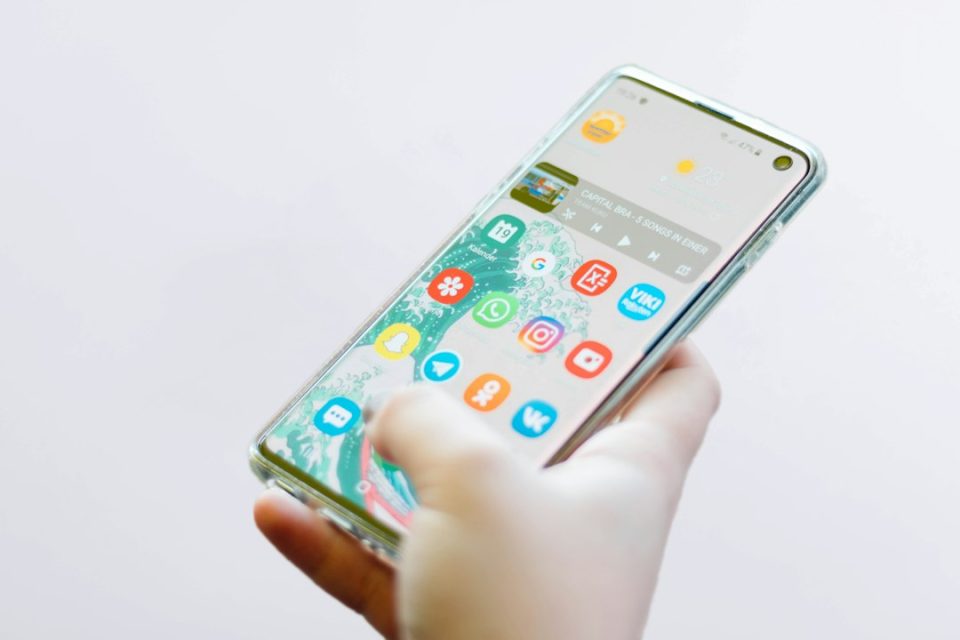
Samsung phones include a set of hidden settings that go beyond the standard menus — diagnostic dialer codes, a concealed Developer Options menu and tucked‑away privacy and performance controls. Most are safe to explore and some are useful for everyday users; below we explain where to find them, what they do, and how to stay safe when using them.
Where Samsung secret settings are located
Samsung’s hidden options appear in three main places: deeper menus inside the regular Settings app, the phone dialer via special codes, and the Developer Options menu that becomes visible after a specific action. None of these require special tools or advanced technical knowledge.
Inside the Settings app, useful but often overlooked controls live under Settings > Privacy (for permission and diagnostic controls) and Settings > Battery and device care (for performance and storage tools). The dialer accepts number sequences that open diagnostic menus. Developer Options unlocks after a set procedure described below and exposes advanced controls mainly intended for developers.
Secret dialer codes and what they do
Samsung secret codes are number sequences typed into the Phone app keypad that open hidden diagnostic menus or display device information. They are intended for technicians and advanced users to view details or run tests. To use any of them, open the Phone app, tap the keypad and type the code exactly; most codes open automatically without pressing the call button.
Notable codes cited:
– *#06# — displays the phone’s IMEI number.
– *#0*# — opens a hardware test menu for screen, speakers, vibration motor and camera checks.
– *#1234# — shows the phone’s current software version and firmware details.
– *#12580*369# — displays detailed hardware and software information about the device.
– *#0228# — opens a battery status screen with real‑time voltage and temperature information.
How to enable Developer Options
To turn on Developer Options: go to Settings > About phone > Software information and tap Build number seven times in a row. After several taps a countdown appears and, once you reach seven, the phone confirms Developer Options is enabled. You can then find it at Settings > Developer options. The phone will likely ask for your PIN or fingerprint to confirm before the menu unlocks.
Hidden settings that help everyday users
Two groups of hidden settings are immediately useful for most users: Privacy controls inside Settings, and a small number of Developer Options that affect perceived performance.
Privacy: In Settings > Privacy, the Permission manager shows which apps have access to camera, microphone, location and contacts. Reviewing and revoking unnecessary permissions can limit data exposure. Also under Privacy, the Send diagnostic data option lets users choose whether to share usage information with Samsung; turning it off does not affect daily performance.
Developer Options: A few developer settings can make the phone feel snappier without technical risk. Window animation scale, Transition animation scale and Animator duration scale control animation speed; setting each to 0.5x speeds animations and makes the phone feel more responsive. Background process limit can reduce how many apps stay active in the background, which may help older devices run more smoothly.
Safety and precautions
Most of these hidden settings are safe when used as described. Dialer diagnostic codes are read‑only tools that display information but do not change settings. Reviewing privacy controls carries no risk and is recommended.
Developer Options requires more caution: it exists for app developers and some settings can change phone behavior in ways that are not straightforward to reverse. Low‑risk tweaks such as animation scales are easy to undo; options like USB debugging or networking‑related settings should be left alone unless you have a specific reason and understand their effects. A simple rule: if a setting’s description is unclear, leave it unchanged.
How to restore normal behavior if something goes wrong
If a changed setting causes unexpected behavior, first try to reverse the change manually. To disable all developer tweaks at once, go to Settings > Developer options and toggle the switch at the top of the page; this turns off the Developer Options menu and its settings.
If you cannot identify the change or the issue persists, use the built‑in reset tools: go to Settings > General management > Reset and choose Reset all settings to restore defaults without deleting photos, apps or personal data. A full factory reset erases everything; before performing one, back up your phone using Samsung Cloud or Smart Switch, both of which are built into Samsung devices.
Keeping a recent backup ensures that exploring hidden settings cannot put your personal data at risk.
