

Apple hides several genuinely useful iPhone features in settings menus and contextual controls. These five built-in tools reduce everyday friction and improve privacy, calls, signing documents, alarms and screen safety — here’s what they do and how to enable each one.
Impersonation Risk Detection — an iPhone feature for privacy
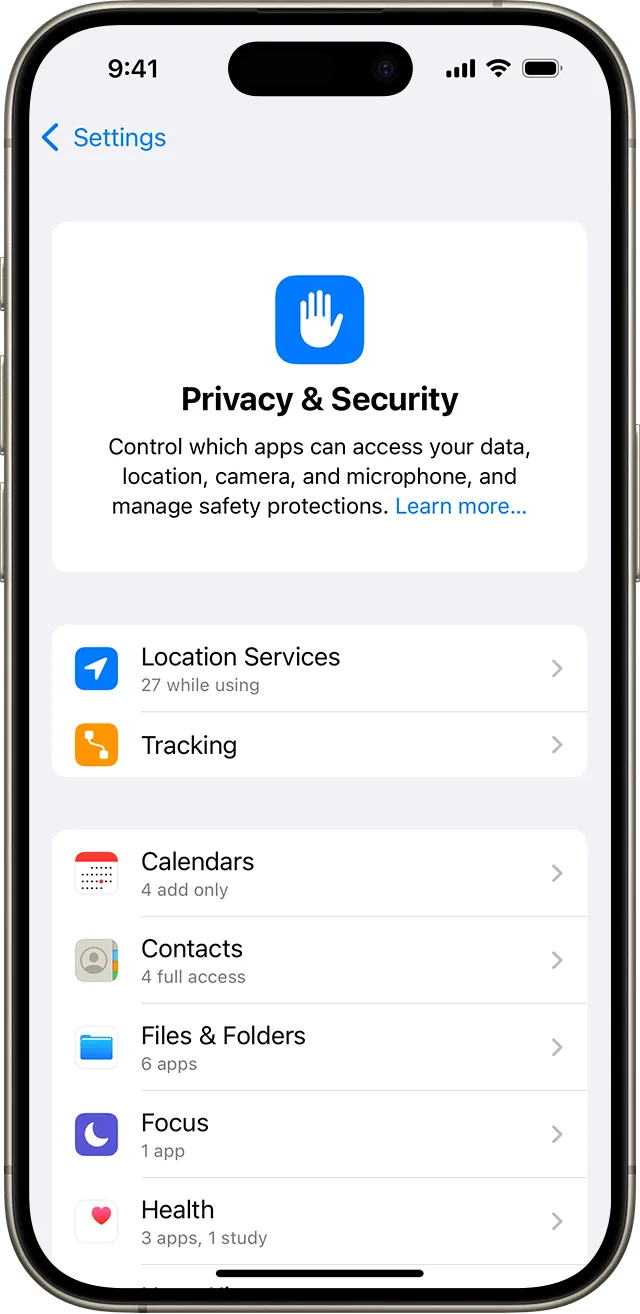
This on-device protection detects sophisticated AI‑cloned voices and spoofed messages by analysing unusual communication patterns locally, without Apple reading your messages or emails. If high‑risk fraud is suspected, it alerts supported apps before you authorise a transfer or surrender credentials. To turn it on: open Settings, tap Privacy & Security, select Impersonation Risk Detection, then toggle the switch on.
Voice Isolation for clearer calls
Voice Isolation uses machine learning to prioritise your vocal frequencies and filter out background noise during calls. It appears contextually while a call is underway rather than in the main Settings app. To activate it: start or answer any cellular or FaceTime call, swipe down from the top‑right corner to open Control Center, tap Phone Controls (or Mic Mode), and select Voice Isolation.
Instant document signing with Markup
The native Markup tool stores a permanent signature you can drop, resize and place on any document in seconds. Open the document in Files or Photos (or take a screenshot), tap the Markup pen icon, tap the plus icon on the toolbar, choose Signature, write your name once and tap Done. Position and resize the saved signature where you need to sign.
Unlinking alarm volume from ringtone
iOS lets you decouple alarm volume from your ringtone and alert slider so lowering daytime sound won’t silence your wake‑up alarm. Open Settings and tap Sounds & Haptics. Under Alarms & Timers, toggle Match Ringtone Volume to off, then drag the dedicated slider to set your preferred alarm level.
Screen Distance to reduce close‑up viewing
Screen Distance uses the front TrueDepth camera to gauge how close you hold your iPhone. If you hold the screen closer than 12 inches for several minutes, it temporarily pauses the display and prompts you to step back. To enable it: open Settings, tap Screen Time, select Screen Distance and toggle Screen Distance on.
