

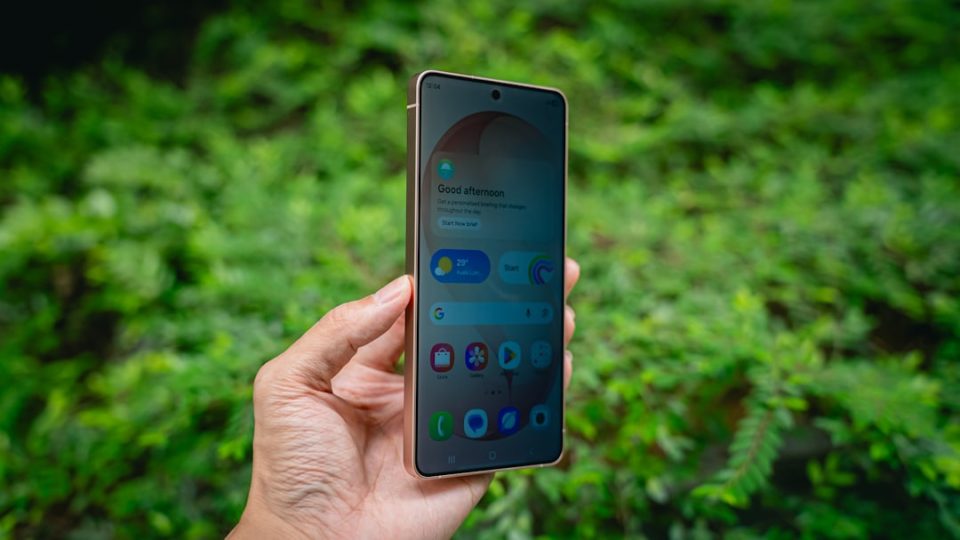
The Galaxy S26 Ultra introduces an innovative Privacy Display feature that restricts the screen’s viewing angle, ensuring that onlookers can’t easily see your display from the side or above. This feature offers both standard and maximum privacy settings, allowing users to choose the level of concealment they prefer.
Privacy Display doesn’t need to be active at all times. It can be configured for specific apps, such as banking apps, or set to engage when entering sensitive information like passwords or PINs, automatically deactivating once the task is complete.
A particularly practical use is setting it to activate only when a notification appears. In this mode, instead of obscuring the entire screen, it only conceals the portion occupied by the notification, a boon for anyone concerned about others glimpsing their alerts.
To configure this, navigate to Settings > Display > Privacy Display > Conditions for turning on, and enable the Notification pop-ups option. Once activated, Privacy Display will automatically engage whenever a notification appears, whether the phone is locked, unlocked, or in Always On Display mode.
For enhanced privacy, users can select the Maximum privacy protection option in the Privacy Display settings. Additionally, Privacy Display can be set to activate in other scenarios, such as during password entry, offering further customization through the Conditions for turning on menu. For those seeking even more tailored control, custom routines can be created using the Modes and Routines app.
