

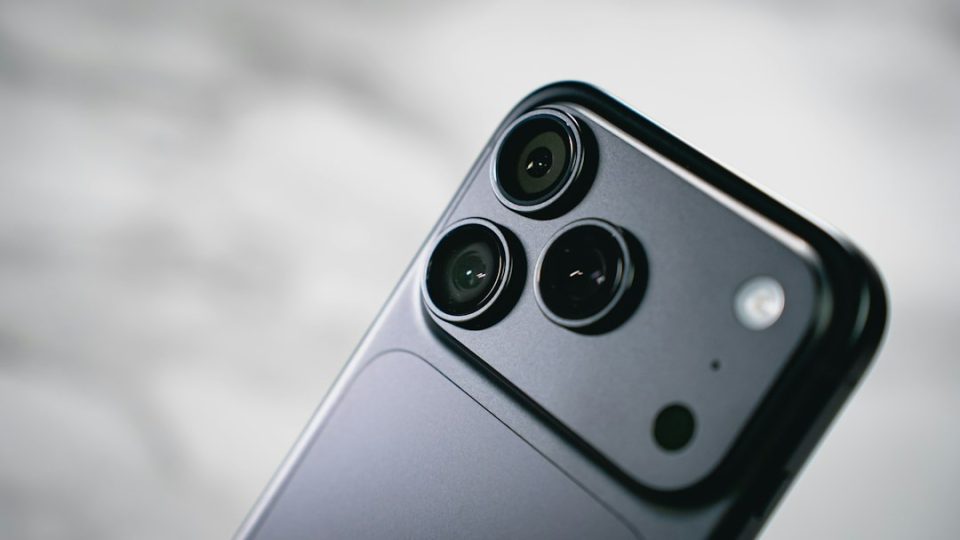
On the iPhone 18 Pro and iPhone 18 Pro Max, Apple’s new Pro controls in the Camera app let you directly adjust white balance, giving you greater control over the way colors are rendered. This article explains how to change the white balance setting and why you might want to lock it for consistent results.
White balance determines how the camera interprets the color temperature of a scene, which affects the consistency of colors across shots. Without a consistent white balance, the camera can shift from warm to cool as you move around the same scene; locking the white balance helps prevent those shifts.
How to adjust white balance on iPhone 18 Pro
Open the Camera app and tap the button with six dots at the bottom-right of the interface. In the control pane, select White Balance. Choose from Automatic White Balance (AWB), Tungsten, Fluorescent, Daylight, Cloudy, and Shadow. When you are satisfied with the selected white balance, tap the shutter button to take your photo.
Pro controls and related features
The Pro controls expand what you can adjust in the Camera app, including aperture, shutter speed and white balance, and they provide a histogram so you can judge exposure instead of relying entirely on automatic decisions. The big hardware upgrade this year is the new variable aperture on the Main camera; to learn how to manually adjust aperture on iPhone 18 Pro, see our dedicated how-to guide.
Adjusting white balance via the Pro controls is a straightforward way to keep color consistent across multiple shots in the same scene.
