

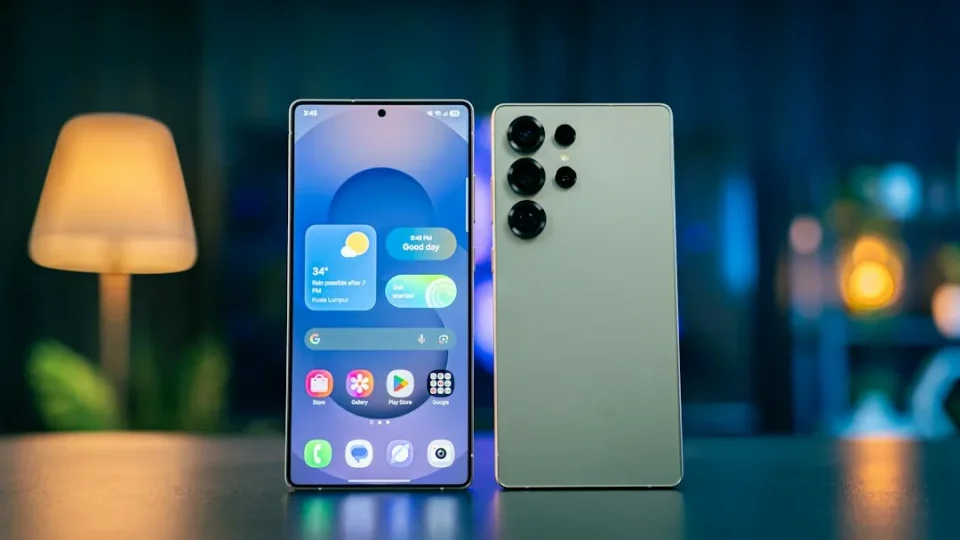
The stable One UI 9 update began reaching more Galaxy S24, S24+, S24 Ultra and S24 FE owners in the second week of October. If you’ve installed it, several useful additions go beyond the Quick Panel tweaks visible at first glance.
One UI 9: start with My FanCam
My FanCam creates a version of an existing video that follows a single person you select, cropping and reframing the recording as they move. It works with older clips recorded before the One UI 9 update. To use it, open the video in Gallery, tap the Galaxy AI icon and select My FanCam, choose the person, orientation and aspect ratio, then tap Follow. If the phone can’t find the person, move the seek bar to a point where they’re clearly visible and try again. You can save the result as a copy while keeping the original.
Customize the Quick Panel
One UI 9 gives more control over the brightness slider, volume slider and media player so you can resize them and separate the sound mode button from the volume control. Open the Quick Panel and tap the pencil-shaped edit button to experiment with layouts and resize controls to suit how you use the phone.
Put Finder or Google Search on your Home screen
You can place a Samsung Finder search bar on the Home screen to search apps, settings and files without opening the app drawer first. Go to Settings > Home screen > Show search on Home screen and enable Finder. You can also add a Google Search bar to the Home screen.
Create scheduled Now Brief custom cards
Now Brief custom cards let you pick content from weather, health or video categories and schedule when each card appears. To create one, go to Settings > Galaxy AI > Now brief > Custom cards and tap +. Choose the content and schedule, generate the card, preview it and save. Follow any setup prompts the first time; you can keep up to three custom cards at once.
Review AI assistant activity
AI assistant activity shows actions performed by an assistant so you can review them afterward—for example, checking activity after asking Gemini to add something to Samsung Reminder. Open Settings > Security and privacy > AI assistant activity, choose the assistant you want to check, then view entries from the last 24 hours or last seven days and tap an entry for details.
Use the Tape tool in Samsung Notes
The new Tape tool in Samsung Notes lets you cover part of a note and reveal it when needed, useful for studying: you can cover answers beneath questions and reveal them later. The tool offers solid colors and various patterns for the tape, and a video demonstrates the Tape tool in action.
Try Text spotlight, Select to speak and Motion Assist
Under Settings > Accessibility > Vision enhancements you’ll find Text spotlight, which places selected text in an enlarged window with options to adjust font size and colors, and Select to speak, which reads selected content aloud without enabling full TalkBack. For motion sickness while using your phone in a moving vehicle, search for Motion Assist in Settings; it displays moving shapes that respond to vehicle movement and can be set to Start in a moving vehicle or added as a Quick Settings tile for manual control.
