

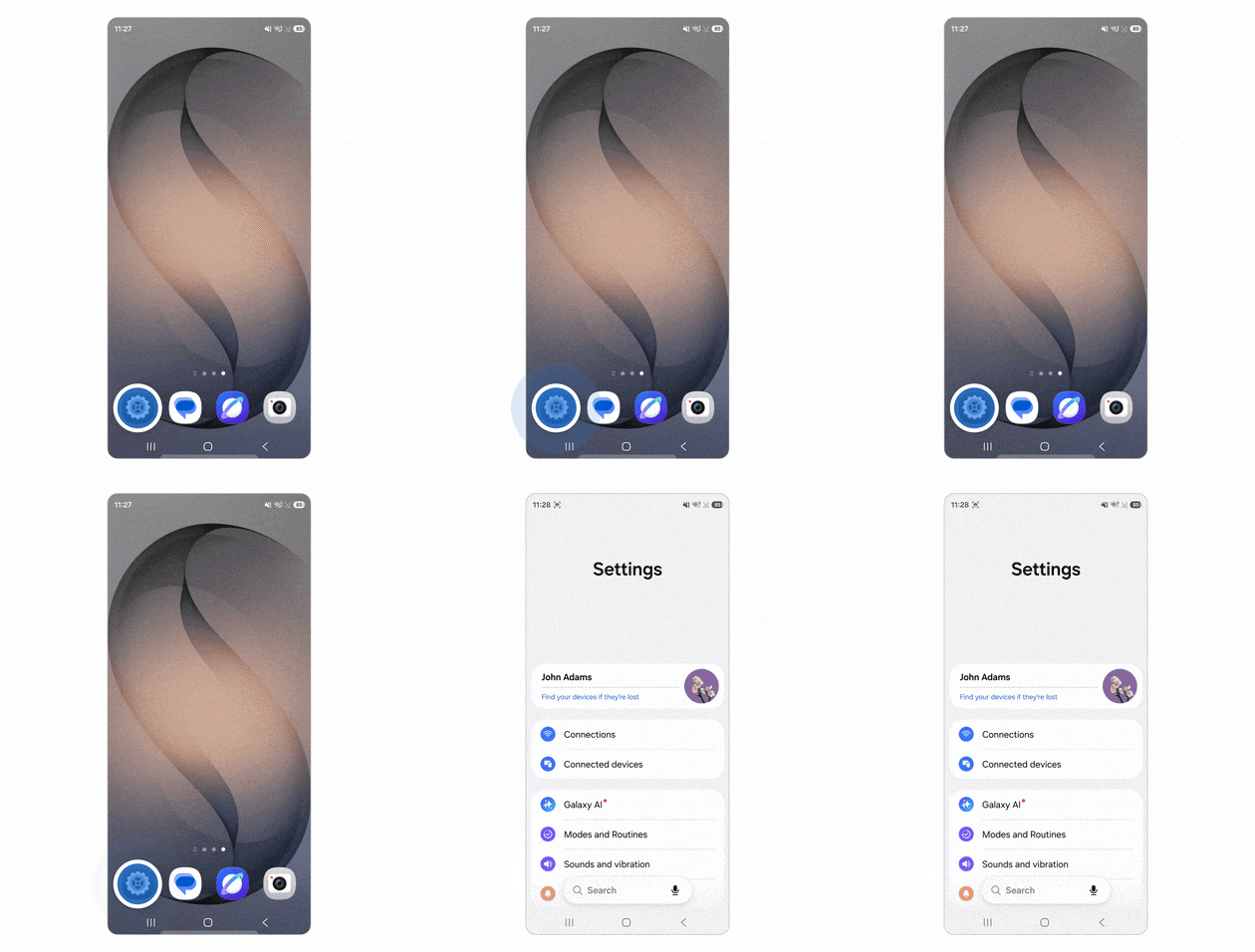
Accidental taps — hitting Send mid-message, stopping a recording too soon, or brushing a progress bar and skipping ahead — are easy to make. Interaction control on your Galaxy phone lets you block touches across the whole screen or only specific areas to prevent those slips, and you can find it in Settings under Accessibility.
You can block the entire display so brushing the screen won’t pause a video or move playback to a different point. Or be selective: in a music app, for example, block the progress bar and previous/next buttons while leaving play/pause active so you can pause and resume without accidentally skipping tracks.
Interaction control also confines you to the app where it’s enabled, preventing accidental navigation to the home screen or another app. This is different from Accidental touch protection in Display settings, which is designed to stop unwanted touches in dark places like a pocket or bag. With Interaction control, you choose when and where to block touches while you’re using the phone.
Interaction control: how to block touches
To set it up, open Settings → Accessibility → Interaction and dexterity → Interaction control and enable Interaction control shortcut. Tap Interaction control shortcut to pick the activation method: press the Side and Volume up buttons together, or press and hold the Volume Up and Volume Down buttons for 3 seconds.
Open the app you want to use and, if relevant, start playback and set the phone’s orientation first. Use your chosen button shortcut to open the Set blocked area screen. On the app preview, move the blue box over the area you want to block and resize it with its handles. Draw around additional areas to add more boxes, or choose Block whole screen to block touches across the entire display. If needed, tap Options in the top-right corner to set a time limit or select which buttons and inputs should remain usable. Then return to the selection screen and tap Done to activate Interaction control.
To turn Interaction control off and restore normal touch controls and navigation, press your chosen button shortcut again.
Check the Options menu before you start: under Never block actions from you can allow the Side button, Volume button, or keyboard to keep working. Allowing the volume buttons is particularly useful when watching videos or listening to music, because it lets you adjust volume without disabling Interaction control.
